User guide
Your first package
The panel has three tabs, in order: 01 Logos, 02 Colours and 03 Export. The bar at the bottom always shows how many files will be made.
Before you start
- Open your master logo file and save it. Kitfold copies the saved .ai into the package.
- Group each logo (primary logo, symbol, wordmark…). Name the group or its layer — for example Stacked Logo or 03 Stacked - White on Red. Kitfold uses those names.
- If you designed versions on a coloured background, put a rectangle behind each logo (on its own layer or the same layer). Kitfold reads the colour from it. Name groups like Primary Logo – Cream on Green to name the version and its background.
01 Logos — capture your artwork
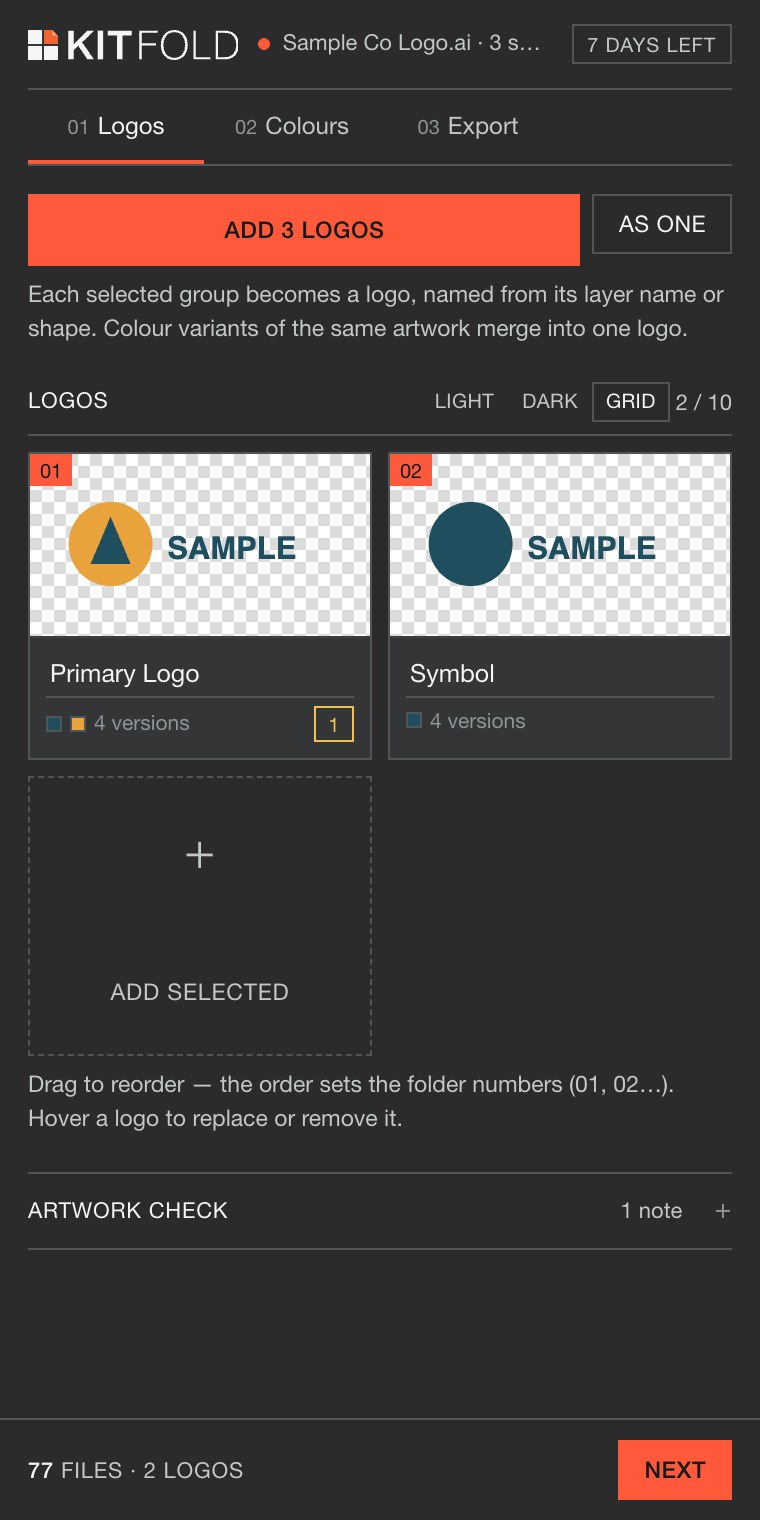
- Select every logo on your artboards — up to 40 objects at once.
- Click Add N logos. Each selected group becomes a logo. Colour copies of the same artwork (black, white, on red…) merge into one logo with several versions.
- If the selection is really one logo made of several pieces, click As one instead.
- Drag tiles to reorder them — the order sets the folder numbers (01, 02…). Hover a tile to replace or remove it.
- Use Light, Dark and Grid to preview the thumbnails on different backgrounds.
- Open Artwork check to see notes about your artwork, such as live text, strokes or shapes that would merge in one-colour versions.
A package holds up to 10 logos.
02 Colours — choose the versions
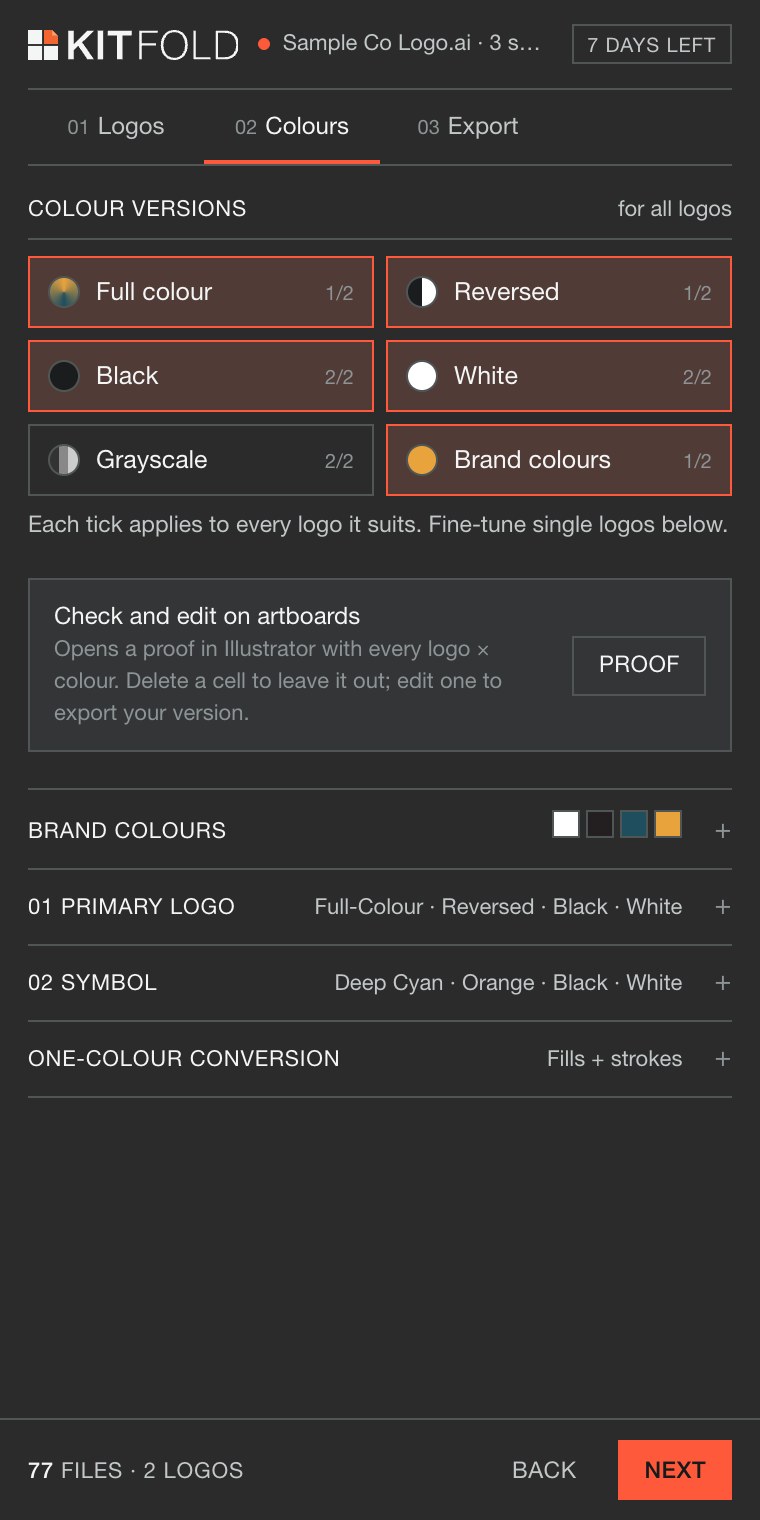
- Under Colour versions, tick what every logo should come in: Full colour, Reversed, Black, White, Grayscale and Brand colours. The count on each tile shows how many logos it applies to.
- Open Brand colours to name each colour and give its exact CMYK and, if you print with one, its Pantone or spot ink name. Print files use these values exactly.
- Open a logo's row to fine-tune that logo alone: rename versions, add one, or delete one.
- Click Proof to open a proof board in Illustrator with every logo in every colour. Delete a cell to leave that version out, or edit it to export your edited artwork. Back in the panel, keep Use proof edits when exporting on.
03 Export — generate
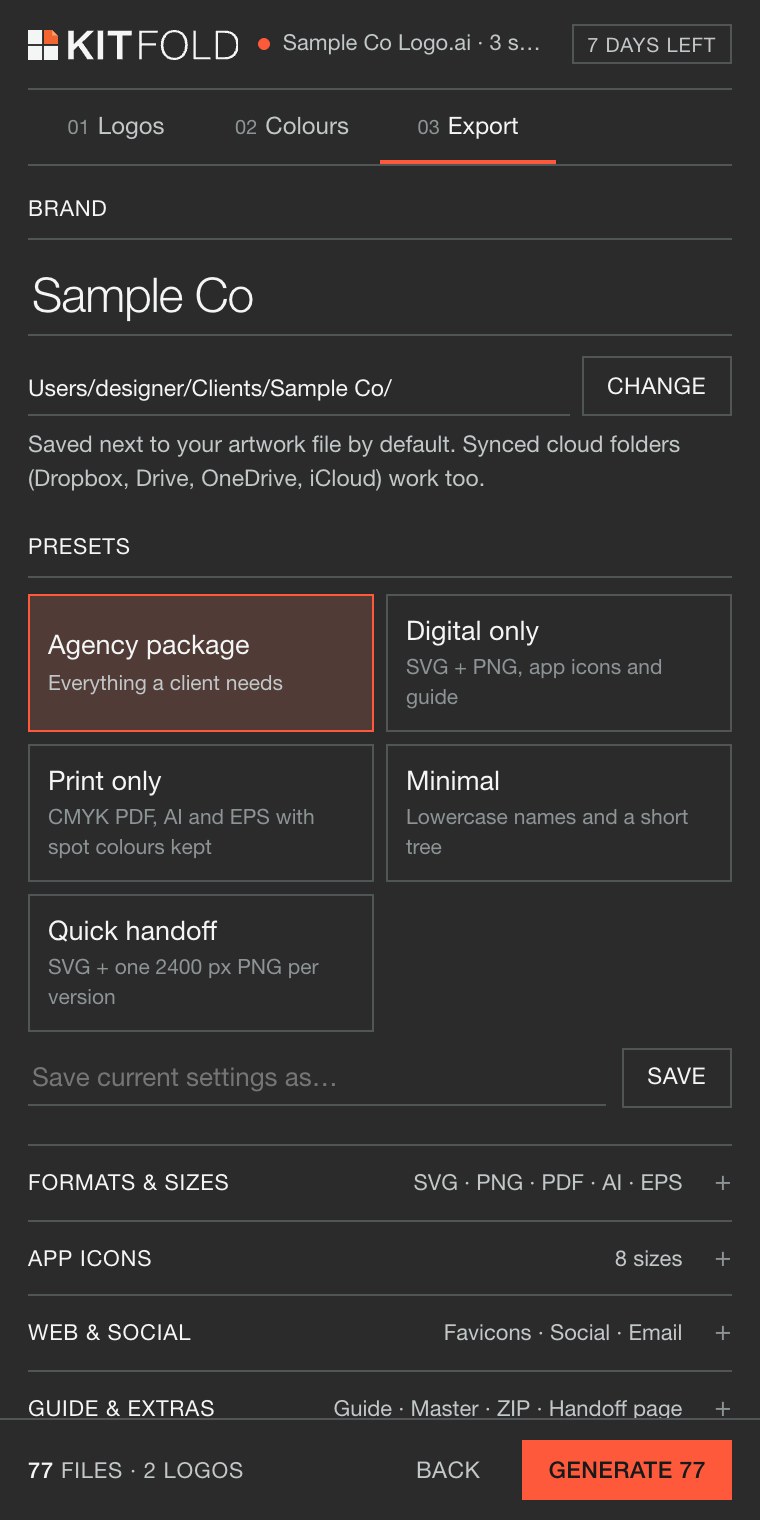
- Check the Brand name. It is used in every file name.
- Choose where to save. By default the package goes next to your artwork file. Synced cloud folders work too.
- Pick a preset: Agency package (everything), Digital only, Print only, Minimal or Quick handoff. Adjust anything in the folds below — see Every setting.
- Check the Overview: it lists every folder and file before anything is written.
- Press Generate. Kitfold builds the package, checks every file and shows what was written, skipped or needs attention. Click Show in Finder (or Show in Explorer) to open it.
Kitfold never edits your document. All work happens on temporary copies, which are closed when the run ends.